Add an IPL T SFI244 and Set the IP Address

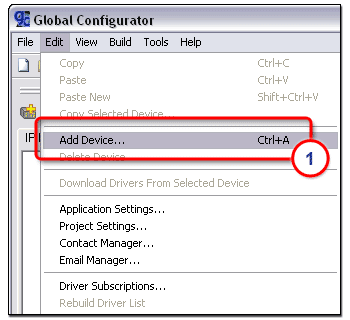
To launch the Add Device dialog box:

  1. From the Edit menu, select Add Device.

- or -

Click the Add Device icon.

- or -

Select Create a Project in the Start Options dialog box.

Follow the prompts until the Add Device dialog opens.

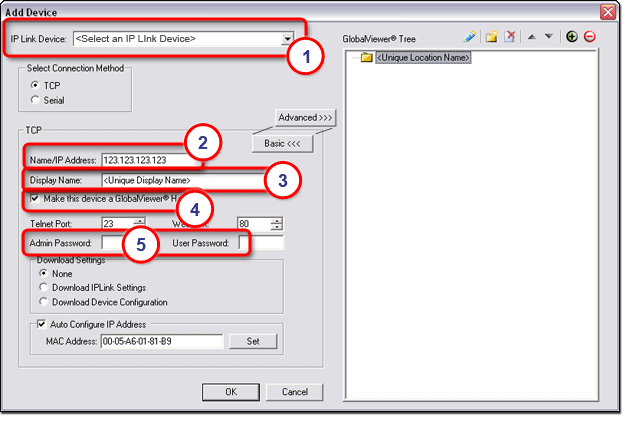
With the Add Device dialog box open (see below):

  1. Select an IP Link® device from the drop-down list.

  2. Enter an IP address in the Name/IP Address field (or leave the default address).

  3. Enter a unique display name.

  4. Click Make this device a GlobalViewer® Host (if desired).

  5. Enter the appropriate admin and user passwords (if the device you are adding is password protected).

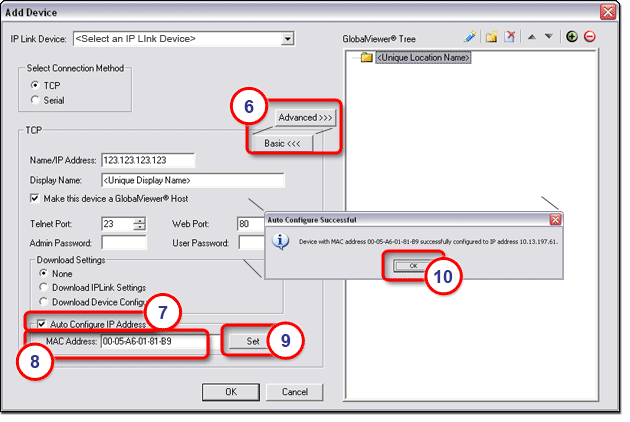
With the Add Device dialog box still open (see below):  

  1. Click the Advanced button.

  2. Click Auto Configure IP Address.

  3. Enter the device's MAC address (found on a label on the rear of the device).

  4. Click Set.

The Auto Configure Successful dialog box is displayed.

  1.  Click OK.

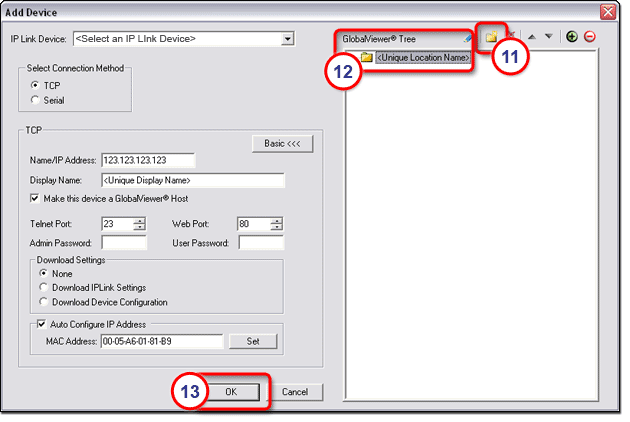
With the Add Device dialog box still open (see below):  

  1.  Click the New Location folder icon in the GlobalViewer Tree window.

  2.  Enter a unique location name for the new folder and keep the new location folder selected.

  3.  Click OK.

The Add Device dialog box closes.

Save the project

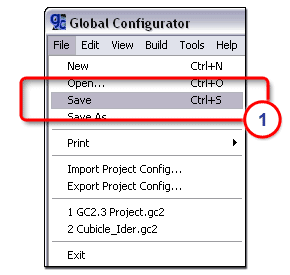
To save the project file:

  1. Under the File menu, select Save.

- or -

Click the Save icon.


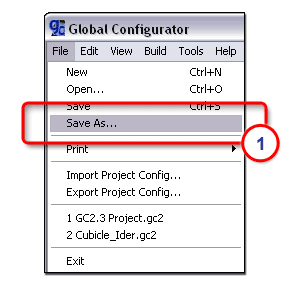
To save the project file as...:

  1. Under the File menu, select Save As.


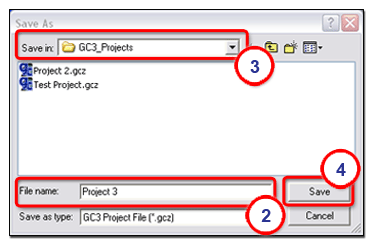
The Save As dialog box opens.

  1. Enter a unique project filename.

  2. Browse for the desired new location.

  3. Click Save.